.webp?unique=d2c775e)
.webp?unique=d2c775e)
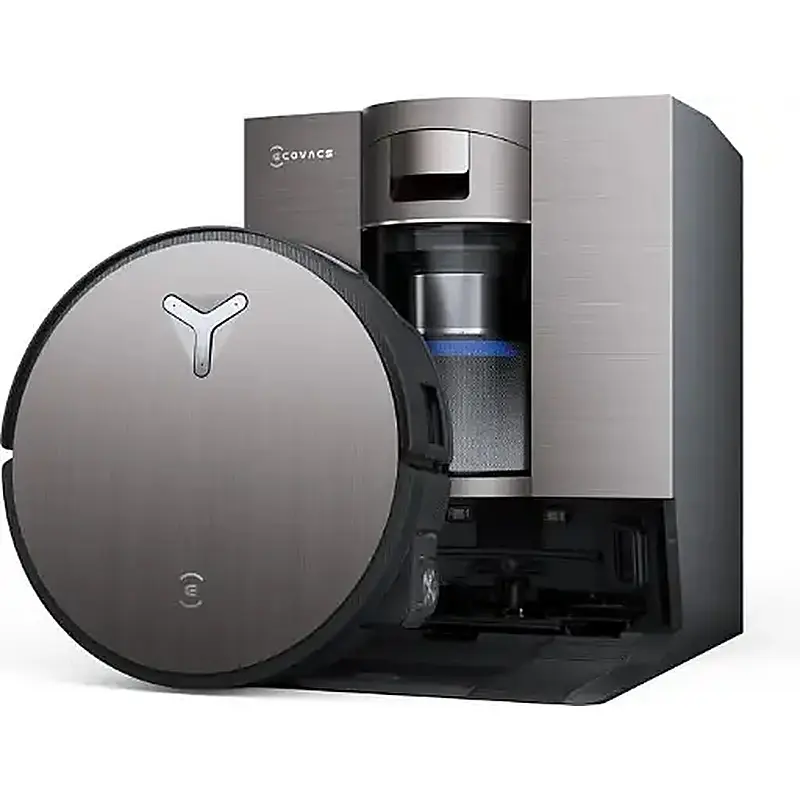
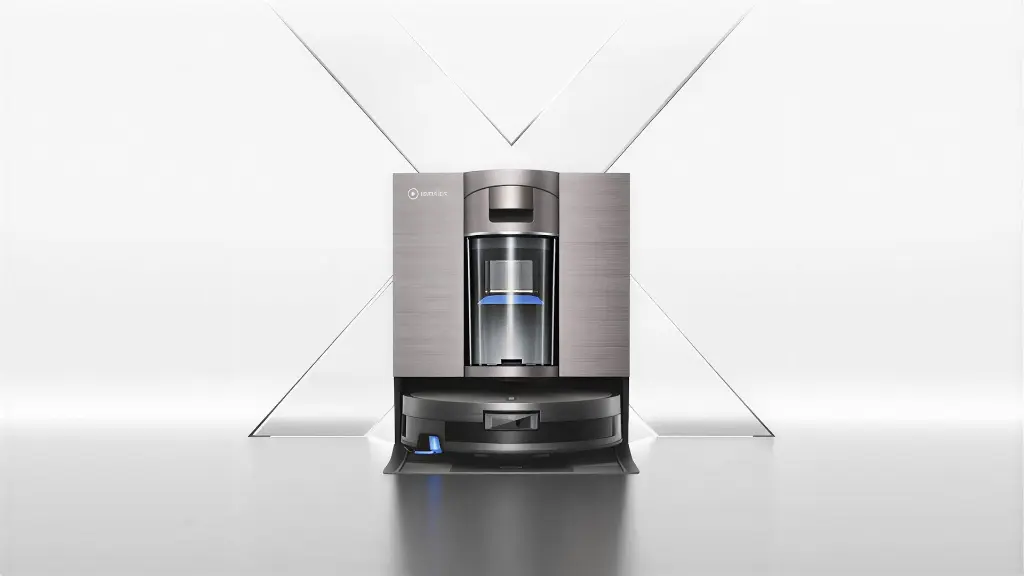
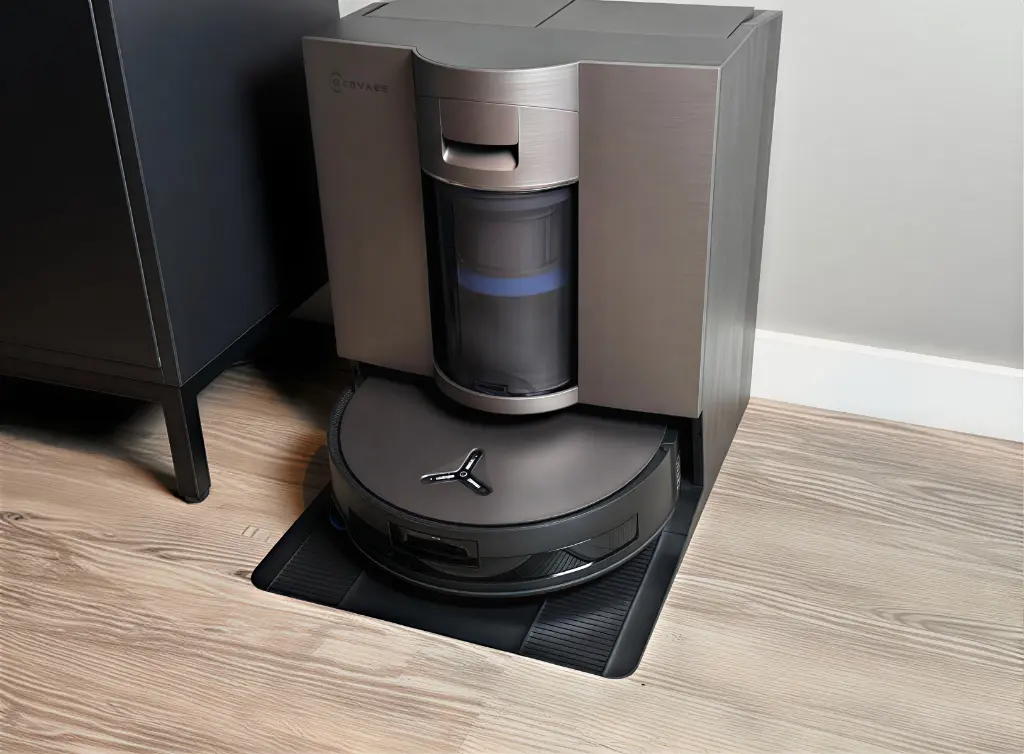
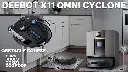
Ecovacs X11 OMNI CYCLONE
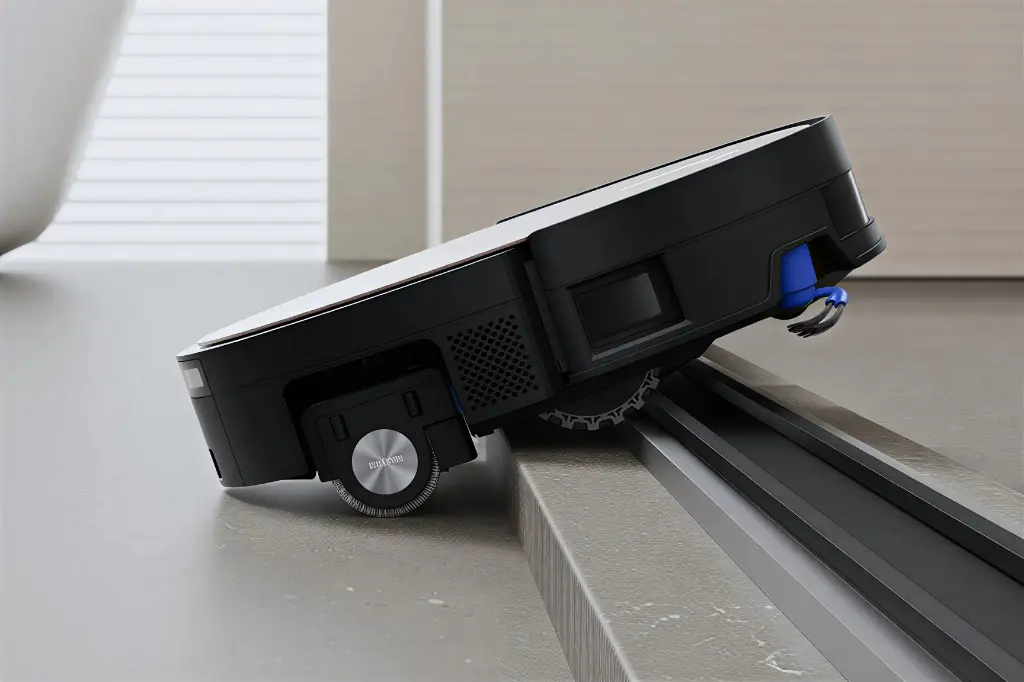
The Ecovacs X11 OMNI CYCLONE is a smart cleaning robot designed to give you easy and practical daily cleaning.
It combines powerful sweeping and mopping to efficiently remove dust and dirt.
It features advanced technologies that reduce hair tangling, making it suitable for modern homes.
An ideal choice for those who want consistently clean floors with greater convenience and less intervention.
Technical Specification:
Suction Power: 19,500 Pa
Sweeping System: OZMO ROLLER 2.0
Anti-Tangle: ZeroTangle 3.0
Edge Cleaning: TruEdge 3.0
Navigation and Obstacle Avoidance: dToF + RGBD + AIVI 3D 3.0
Battery: 6400 mAh
Charging Time: 3 hours 10 minutes
Washing the Mop: Warm water up to 75°C
Clean Water Tank: 3.2 liters
Dirty Water Tank: 2.7 liters
Dust Container: 0.22 liters
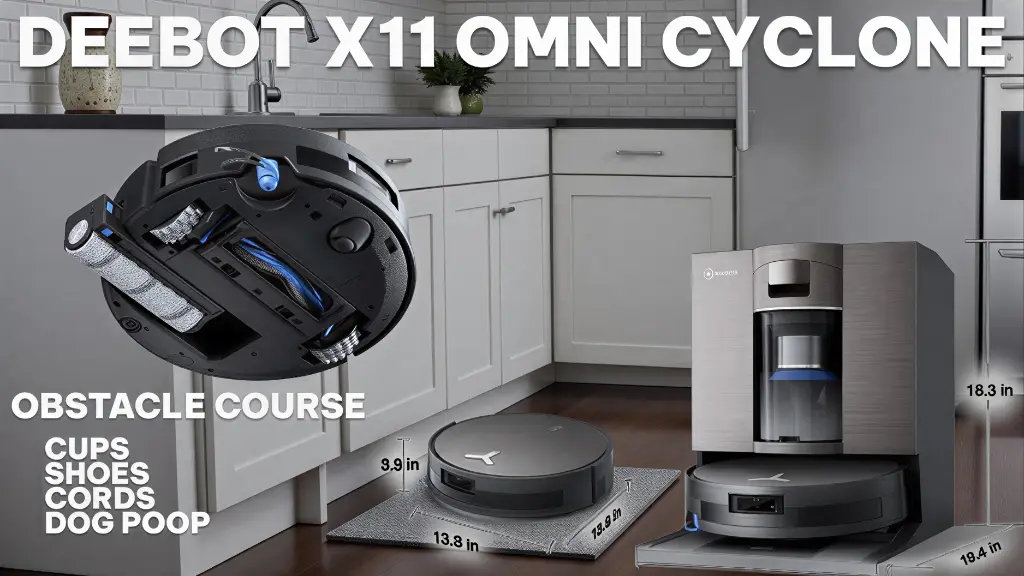
Dimensions: 353 x 351 x 98 mm
Weight: 5.3 kg
How to use:
1) First-Time Setup
Remove the robot, station, and accessories from the box. Remove the protective straps from the robot and station, then attach the side brush until you hear a "click." Next, attach the station base, connect the power supply, and place the station against a wall on a level surface, leaving approximately 5 cm of space on the sides and 80 cm in front. ECOVACS recommends placing the station on ceramic tiles. If using wood, check underneath periodically for any water residue.
2) Setting Up and Connecting the Robot
Open the robot's top cover and switch the power button to position I. Then, download the ECOVACS HOME app. During connection, your mobile device must be connected to a 2.4GHz Wi-Fi or 2.4/5GHz mixed network with Bluetooth enabled. Add the robot via the QR code on your device or manually, then follow the connection instructions within the app.
3) First Charge and First Map
Place the robot directly in front of the station, then use the Return/Exit button on the station or the Return command to enter and begin charging. Before mapping, open room doors, remove obstacles from the floor, and ensure adequate lighting. Then, in the app, go to Enter > Mapping or Start Mapping to begin mapping. While mapping, do not walk behind the robot or move it, and do not change the station's location after the map is complete to avoid disrupting its positioning or causing it to fail to return. The map is saved automatically upon completion.
4) How to Use It Daily
For quick daily cleaning, open the app and select Auto mode. From there, you can adjust the suction power, water level, and area priority. For customized cleaning, you can create a Scenario Clean, such as Daily Clean or Deep Clean, and specify the rooms or areas, customizing the suction, water level, and number of cleanings for each scenario.
5) Correct Cleaning Modes
If you only want to vacuum, remove the mop attachment from the bottom of the robot. If the mop attachment is attached, the default mode is Vacuum + Mop. As for mopping only, you activate it from within the app. This is important because the robot's behavior changes based on the mopping set and the selected settings, not by magic.
6) Using the Station
From the app, access Station to view its status and activate functions such as dust collection, mop drying, and mop cleaning. On the Station's control panel itself: a button to add or drain water from the cleaning basin, a Start/Pause button to start or stop the robot, and a Recall/Exit button to return or remove the robot from the station. The mop washing and air drying commands only work when the robot is inside the station and charging.
7) Manually Cleaning the Station Basin
If the station basin gets dirty, press and hold the station power button for about 3 seconds to bring the robot out and allow water to flow into the cleaning basin. Clean the basin with the brush, then press and hold for about 5 seconds to drain the dirty water. Afterward, empty the dirty water tank. If there is a lot of hair or dirt in the inner tray, you can remove it, clean it, and then replace it. Before proceeding, ensure there is sufficient water in the clean water tank.
8) Adding the cleaning solution correctly
Do not add the cleaning solution to the regular water tank. Open the dust collection compartment lid on the station, remove the cleaning solution unit, open the top cover, and fill it only with genuine ECOVACS DEEBOT solution without exceeding the fill level. Then, replace the unit and close the cover. Afterward, open the app and activate Auto Cleaning Solution Adding.
9) Map management after first use
After creating the map, you can go to Smart Cleaning > Map Management to edit the name, create multiple maps, back up and restore, add virtual walls, specify the zone type, merge or split rooms, and activate the carpet strategy. Just do not place a virtual wall around the station itself.
10) YIKO voice assistant
If you want voice control, open the app, then go to Device > YIKO icon > Settings, and activate the voice assistant. After that, you can use commands such as: OK YIKO, start cleaning, OK YIKO, return to charge, or OK YIKO, clean the mopping pads. Some commands appear within the app depending on the version and region.
11) System Update
It is best to update the system after the initial installation: The robot should be on the dock and charging, preferably with the battery above 50%. Then, from the app: Settings > DEEBOT Advanced Settings > Robot Information/About Robot > Upgrade
It combines powerful sweeping and mopping to efficiently remove dust and dirt.
It features advanced technologies that reduce hair tangling, making it suitable for modern homes.
An ideal choice for those who want consistently clean floors with greater convenience and less intervention.
Technical Specification:
Suction Power: 19,500 Pa
Sweeping System: OZMO ROLLER 2.0
Anti-Tangle: ZeroTangle 3.0
Edge Cleaning: TruEdge 3.0
Navigation and Obstacle Avoidance: dToF + RGBD + AIVI 3D 3.0
Battery: 6400 mAh
Charging Time: 3 hours 10 minutes
Washing the Mop: Warm water up to 75°C
Clean Water Tank: 3.2 liters
Dirty Water Tank: 2.7 liters
Dust Container: 0.22 liters
Dimensions: 353 x 351 x 98 mm
Weight: 5.3 kg
How to use:
1) First-Time Setup
Remove the robot, station, and accessories from the box. Remove the protective straps from the robot and station, then attach the side brush until you hear a "click." Next, attach the station base, connect the power supply, and place the station against a wall on a level surface, leaving approximately 5 cm of space on the sides and 80 cm in front. ECOVACS recommends placing the station on ceramic tiles. If using wood, check underneath periodically for any water residue.
2) Setting Up and Connecting the Robot
Open the robot's top cover and switch the power button to position I. Then, download the ECOVACS HOME app. During connection, your mobile device must be connected to a 2.4GHz Wi-Fi or 2.4/5GHz mixed network with Bluetooth enabled. Add the robot via the QR code on your device or manually, then follow the connection instructions within the app.
3) First Charge and First Map
Place the robot directly in front of the station, then use the Return/Exit button on the station or the Return command to enter and begin charging. Before mapping, open room doors, remove obstacles from the floor, and ensure adequate lighting. Then, in the app, go to Enter > Mapping or Start Mapping to begin mapping. While mapping, do not walk behind the robot or move it, and do not change the station's location after the map is complete to avoid disrupting its positioning or causing it to fail to return. The map is saved automatically upon completion.
4) How to Use It Daily
For quick daily cleaning, open the app and select Auto mode. From there, you can adjust the suction power, water level, and area priority. For customized cleaning, you can create a Scenario Clean, such as Daily Clean or Deep Clean, and specify the rooms or areas, customizing the suction, water level, and number of cleanings for each scenario.
5) Correct Cleaning Modes
If you only want to vacuum, remove the mop attachment from the bottom of the robot. If the mop attachment is attached, the default mode is Vacuum + Mop. As for mopping only, you activate it from within the app. This is important because the robot's behavior changes based on the mopping set and the selected settings, not by magic.
6) Using the Station
From the app, access Station to view its status and activate functions such as dust collection, mop drying, and mop cleaning. On the Station's control panel itself: a button to add or drain water from the cleaning basin, a Start/Pause button to start or stop the robot, and a Recall/Exit button to return or remove the robot from the station. The mop washing and air drying commands only work when the robot is inside the station and charging.
7) Manually Cleaning the Station Basin
If the station basin gets dirty, press and hold the station power button for about 3 seconds to bring the robot out and allow water to flow into the cleaning basin. Clean the basin with the brush, then press and hold for about 5 seconds to drain the dirty water. Afterward, empty the dirty water tank. If there is a lot of hair or dirt in the inner tray, you can remove it, clean it, and then replace it. Before proceeding, ensure there is sufficient water in the clean water tank.
8) Adding the cleaning solution correctly
Do not add the cleaning solution to the regular water tank. Open the dust collection compartment lid on the station, remove the cleaning solution unit, open the top cover, and fill it only with genuine ECOVACS DEEBOT solution without exceeding the fill level. Then, replace the unit and close the cover. Afterward, open the app and activate Auto Cleaning Solution Adding.
9) Map management after first use
After creating the map, you can go to Smart Cleaning > Map Management to edit the name, create multiple maps, back up and restore, add virtual walls, specify the zone type, merge or split rooms, and activate the carpet strategy. Just do not place a virtual wall around the station itself.
10) YIKO voice assistant
If you want voice control, open the app, then go to Device > YIKO icon > Settings, and activate the voice assistant. After that, you can use commands such as: OK YIKO, start cleaning, OK YIKO, return to charge, or OK YIKO, clean the mopping pads. Some commands appear within the app depending on the version and region.
11) System Update
It is best to update the system after the initial installation: The robot should be on the dock and charging, preferably with the battery above 50%. Then, from the app: Settings > DEEBOT Advanced Settings > Robot Information/About Robot > Upgrade
| BENEFIT: Products that guarantee saving you time and your daily comfort |
| Brand: Ecovacs |
Your Dynamic Snippet will be displayed here...
This message is displayed because youy did not provide both a filter and a template to use.