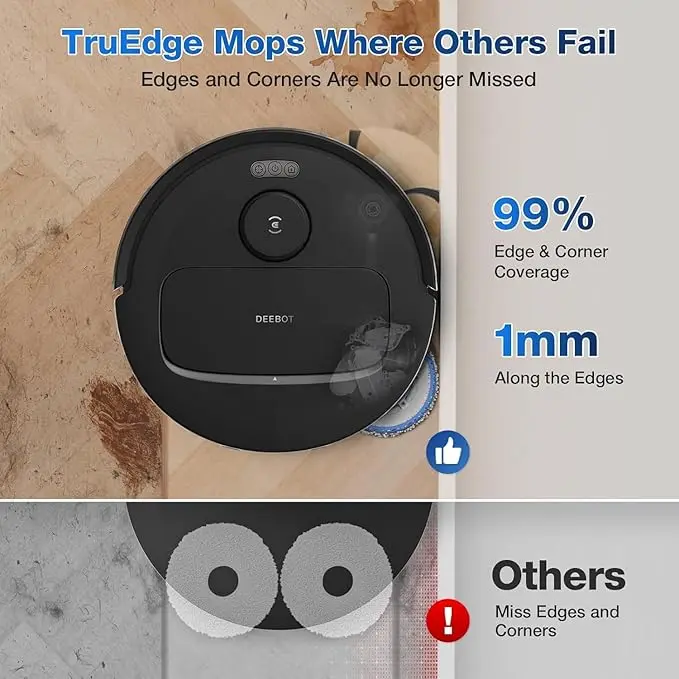
ECCOVACS N30 PRO OMNI robot vacuum
Home Tech
All product details are clearly stated.
Product Overview
Product Description
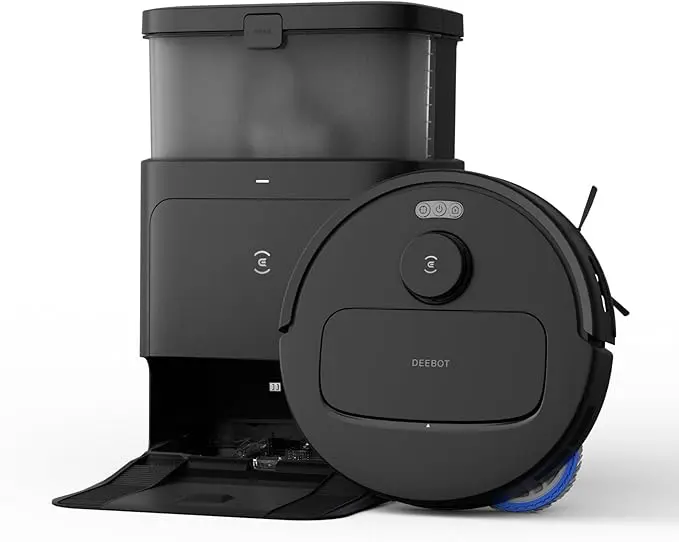
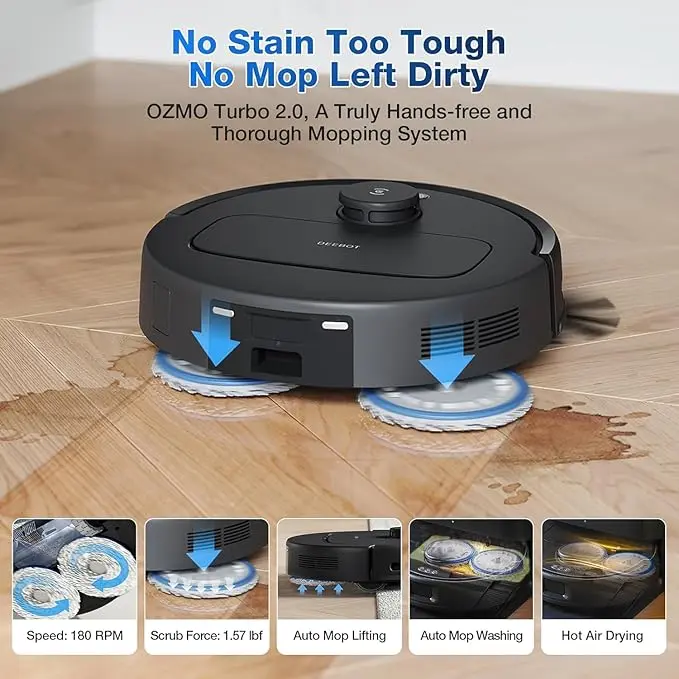
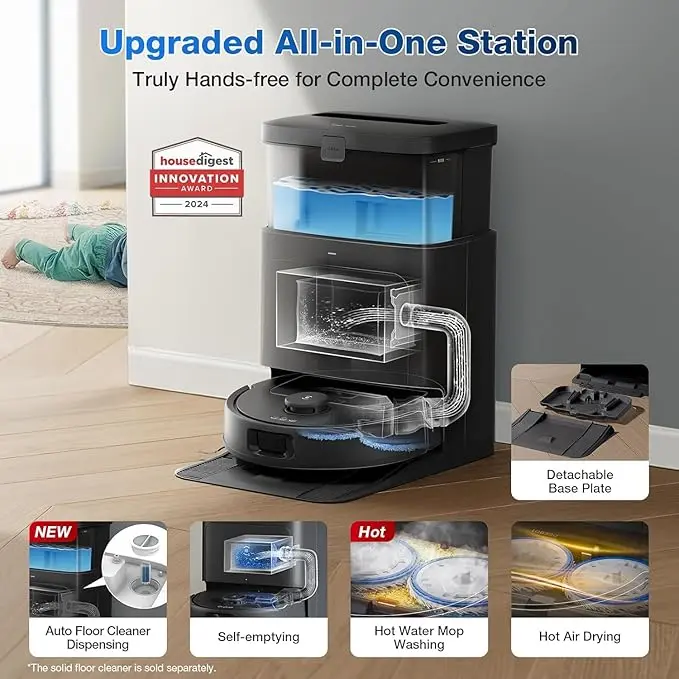
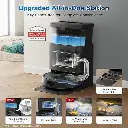
- 【All-In-One OMNI Station】OMNI DEEBOT N30 PRO station supports automatic mop washing in hot water at 60°C and automatic emptying, designed to free your hands. A 60°C post-clean hot air dry function prevents odors, ensuring your home always smells fresh. The 2.6L dust bag holds up to 75 days of dust, eliminating the need to empty it frequently.
Technical Specs
Technical specifications
Battery Life 320 minutes
Battery Type Lithium Ion
Voltage 14.4 Volts
Capacity 520 Milliliters
Power Source Battery Powered
Item Dimensions L x W x H 35.3L x 48.5W x 54H centimeters
Item Weight 5.5 Kilograms
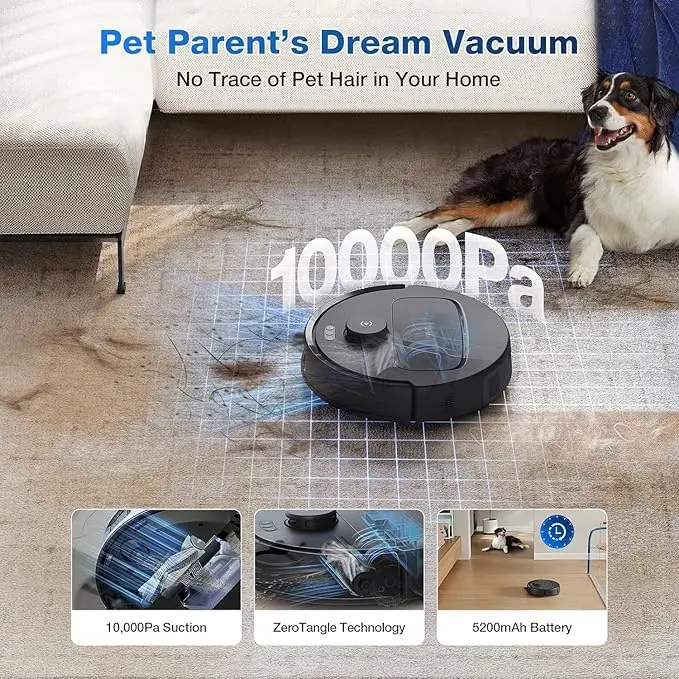
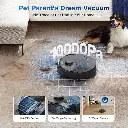
suction power: 10000 pa
How To Use
How to use
Place the OMNI station Put the station on a flat floor near a power outlet. Leave clear space in front of it so the robot can enter and exit easily. Prepare the water tank Open the clean water tank and fill it with clean water up to the MAX line. Install the mop pads Turn the robot over carefully and attach the mopping pad assembly before starting a mopping task. Charge the robot Place the robot in front of the station and press the return/home button so it docks and starts charging. Connect to the ECOVACS HOME app Download the ECOVACS HOME app, add the robot, connect it to Wi-Fi, and follow the app instructions. Create the first map Start the first cleaning or mapping run from the app. After the map is created, you can choose rooms, set cleaning areas, and customize cleaning preferences. Start cleaning Press the power button on the robot or start from the app. A short press can start a vacuuming and mopping task. Use custom cleaning After the robot is connected and the map is created, open the app and go to robot controls/settings to create cleaning scenarios such as Daily Cleaning or Deep Cleaning. You can also set cleaning preferences for each area. Schedule cleaning In the app, go to Settings → Robot Advanced Settings → Scheduled Clean, then add a new schedule and choose the repetition. After cleaning The robot returns to the OMNI station. The station handles functions like mop washing and station maintenance depending on your settings. Empty the dirty water tank, refill clean water, and replace the dust bag when needed.
Customer Reviews
Share your experience with this product
| Brand: Ecovacs |
Your Dynamic Snippet will be displayed here...
This message is displayed because youy did not provide both a filter and a template to use.