.webp?unique=69fa2cc)
.webp?unique=69fa2cc)
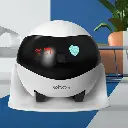
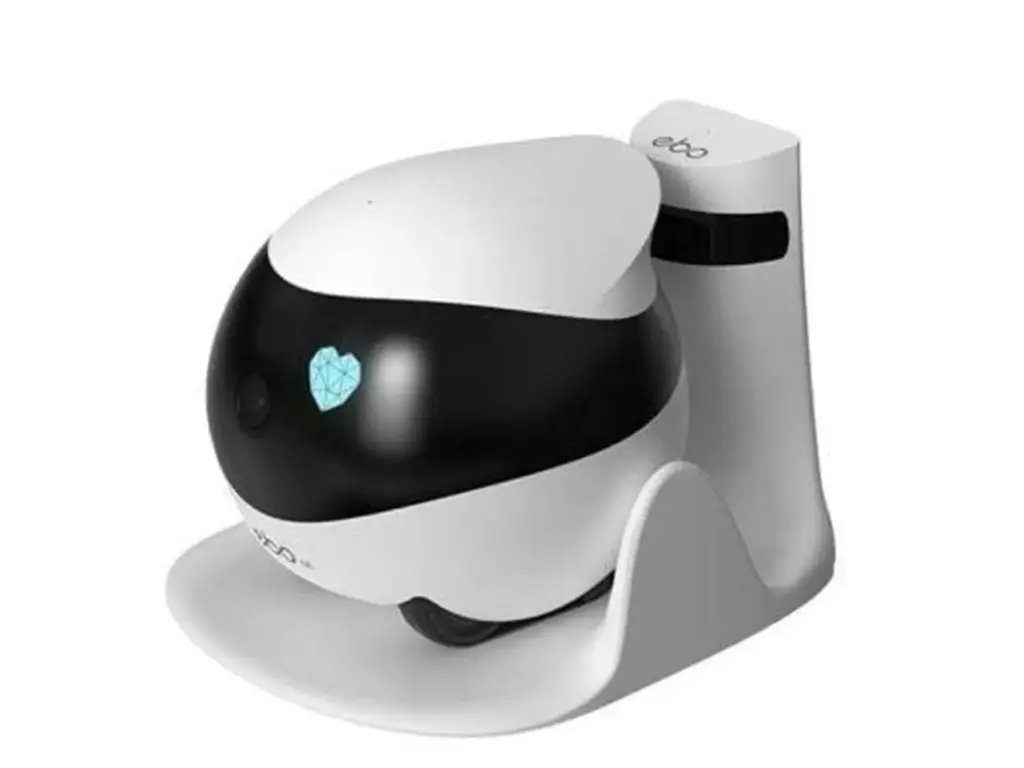
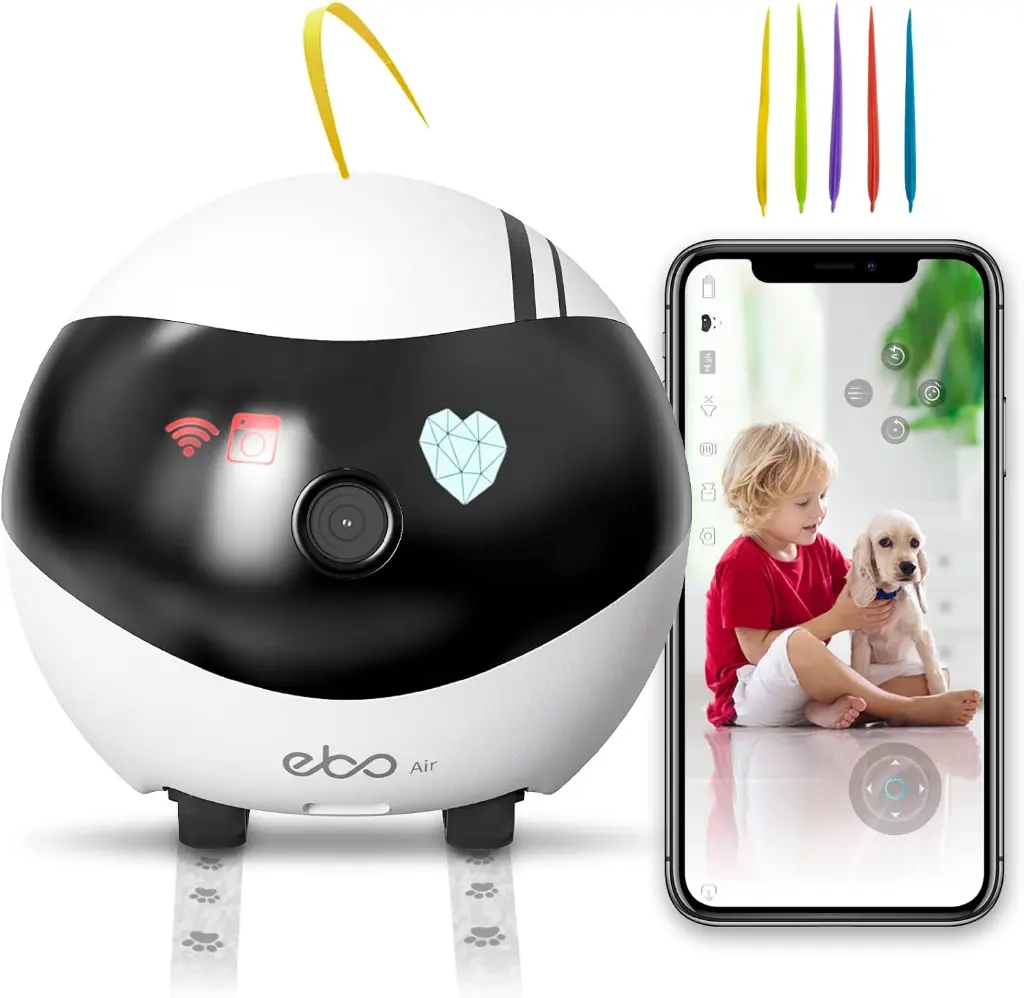
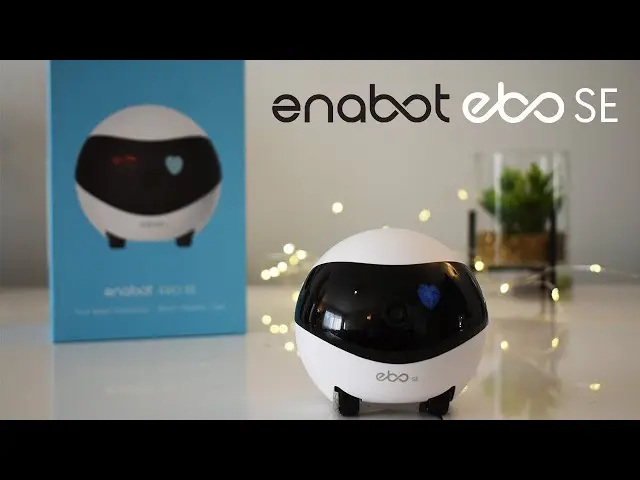
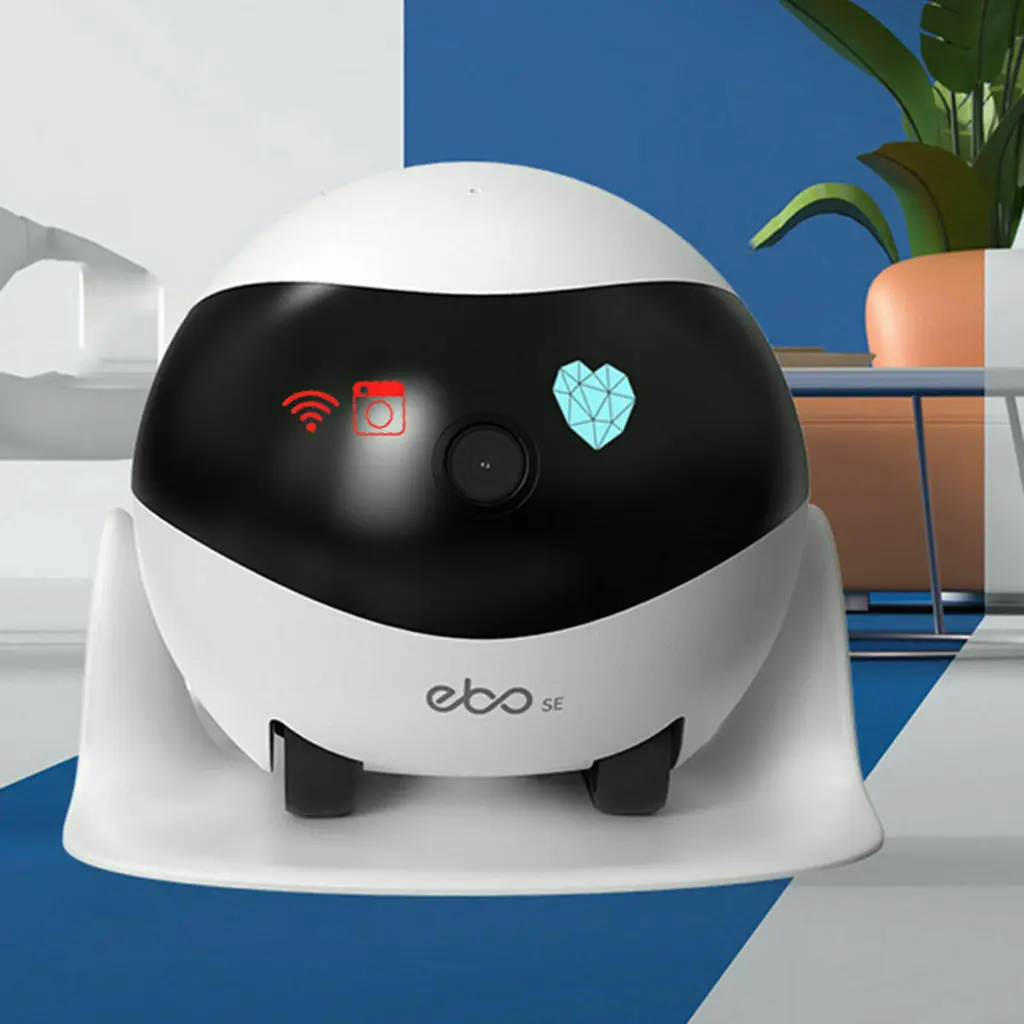
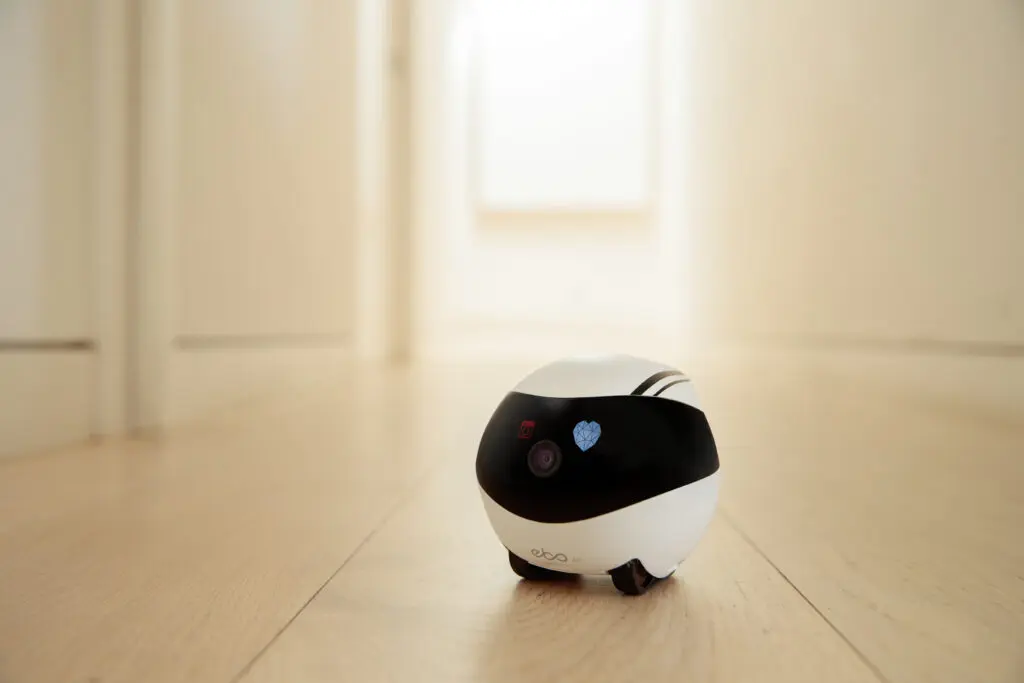
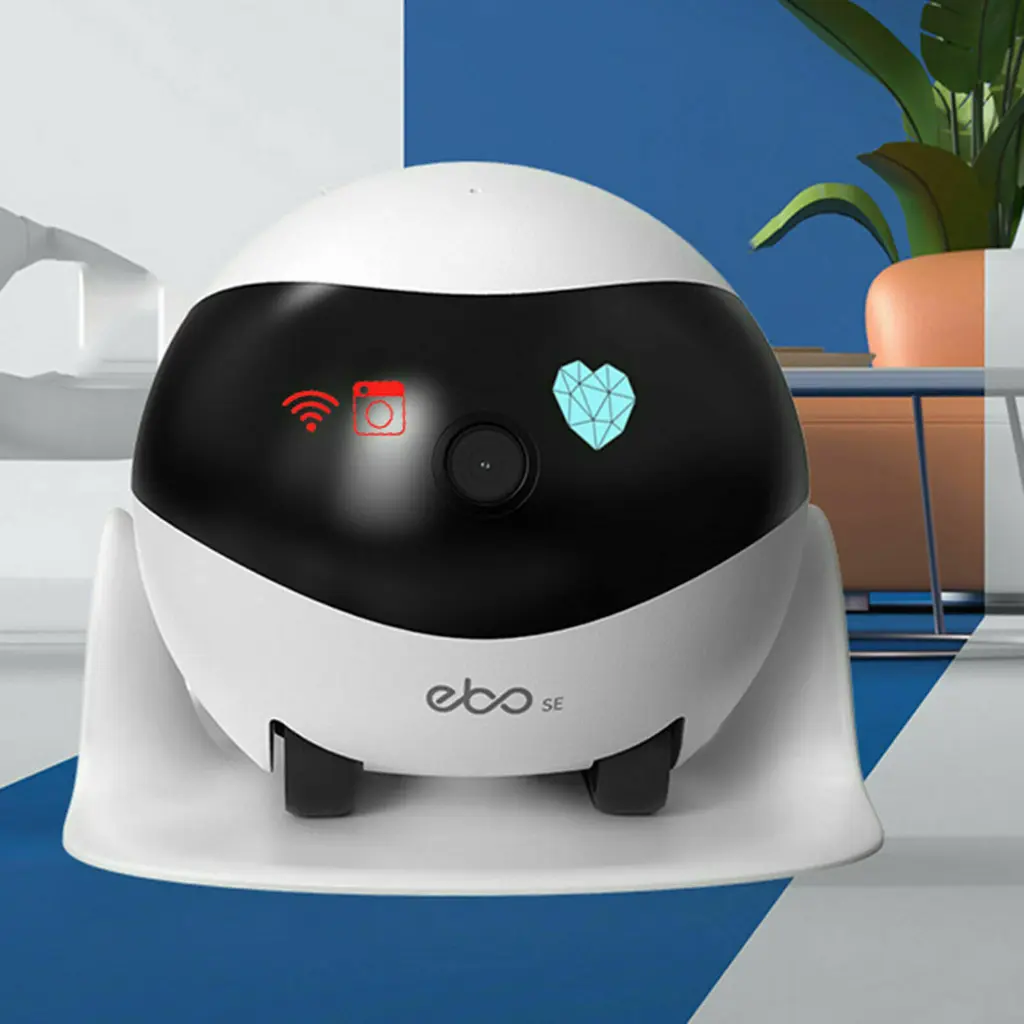
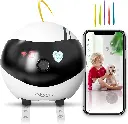
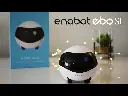
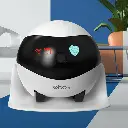
Enabot EBO SE Camera Family Robot
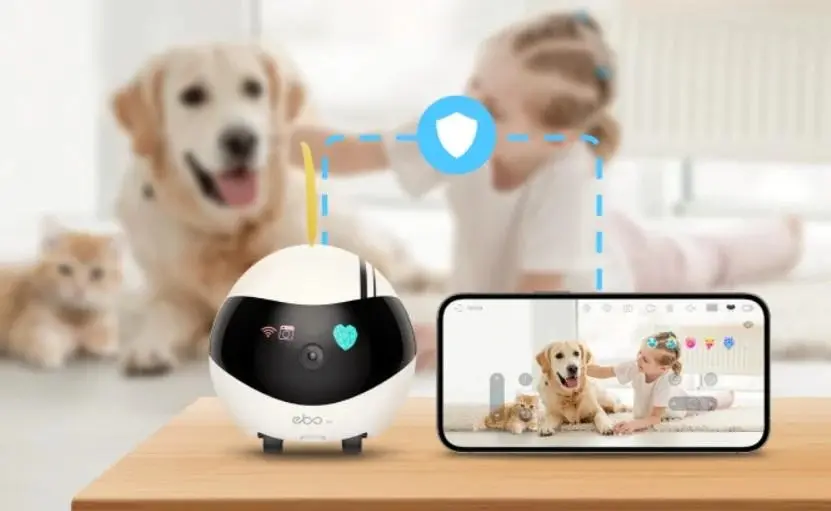
These smart home security robots from Enabot are camera-controlled, allowing you to monitor your home remotely and see what's happening live via your phone.
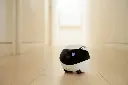
You can move the robot around your home to change the viewing angle and monitor different areas, with live streaming and customizable alerts.
It's useful for keeping an eye on children, pets, or elderly family members, and even for checking on your home while you're traveling.
The cute design is suitable for everyday use and provides smarter monitoring than a fixed camera.
Technical Specification:
Device Type: Smart Indoor Device
Connectivity: 2.4GHz Wi-Fi
Camera Resolution: 1920 x 1080 pixels (Full HD)
Viewing Angle: 120°
Night Vision: Supported (Infrared)
Battery: 2600 mAh Rechargeable
Operating Time: Up to 6 hours of continuous use
Charging Time: 3-4 hours
Storage: Supports microSD memory card
Audio: Built-in microphone + speaker (two-way communication)
Control: Via a dedicated mobile app
Supported Operating Systems: Android / iOS
Material: Durable ABS plastic
Color: White x Black
Use: Indoor only
How to use:
1. Initial Setup and Charging (Setup Phase)
Preparing the Charging Dock: Place the charging dock on a flat surface, firmly against a wall, ensuring there are no obstructions within a radius of approximately one meter so the robot can easily return to it.
Connecting Power: Connect the power cable to the dock and then to a power outlet.
Powering On: Gently place the EBO robot on the charging dock. The robot will light up and beep to indicate that it is powered on and has begun charging. It is recommended to fully charge the robot before first use.
2. Downloading the App and Pairing the Device (Pairing Phase)
Downloading the App: Search for the EBO app in the Apple App Store or Google Play and download it to your smartphone.
Creating an Account: Open the app, create a new account using your email address, and then log in.
Adding a Device: 1. Tap the "Add a new device" option (+ icon) and select the EBO SE model.
2. Enter your Wi-Fi network details. Note: Ensure you enter the password correctly. 3. The app will display a QR code on your phone screen.
4. Point your phone screen at the robot's camera (EBO) from a distance of approximately 15 cm until the robot reads the code and emits a sound confirming a successful connection.
3. Control and Usage (via the app)
Motion Control: The app interface features control buttons (similar to a virtual joystick) that allow you to move the robot forward, backward, and rotate left and right to explore its surroundings.
Camera and Recording: You can watch live video in 1080p, take photos, or record videos directly and save them to your phone or the SD card inside the robot.
Two-Way Audio Communication: By tapping the "microphone" icon in the app, you can speak so that people in the house can hear you through the robot's speaker, and you can also hear them through its built-in microphone.
4. Smart Features and Security Settings
Auto-Cruise: You can schedule the robot to perform patrols at specific times daily. It will record any unusual movement and send notifications to your phone.
Motion Detection: When this option is enabled, the robot will detect any movement in its vicinity and send a direct alert to the app.
Automatic Return to Charging: When the robot's battery is low, it will automatically search for and return to its charging base to recharge itself without any intervention from you.
You can move the robot around your home to change the viewing angle and monitor different areas, with live streaming and customizable alerts.
It's useful for keeping an eye on children, pets, or elderly family members, and even for checking on your home while you're traveling.
The cute design is suitable for everyday use and provides smarter monitoring than a fixed camera.
Technical Specification:
Device Type: Smart Indoor Device
Connectivity: 2.4GHz Wi-Fi
Camera Resolution: 1920 x 1080 pixels (Full HD)
Viewing Angle: 120°
Night Vision: Supported (Infrared)
Battery: 2600 mAh Rechargeable
Operating Time: Up to 6 hours of continuous use
Charging Time: 3-4 hours
Storage: Supports microSD memory card
Audio: Built-in microphone + speaker (two-way communication)
Control: Via a dedicated mobile app
Supported Operating Systems: Android / iOS
Material: Durable ABS plastic
Color: White x Black
Use: Indoor only
How to use:
1. Initial Setup and Charging (Setup Phase)
Preparing the Charging Dock: Place the charging dock on a flat surface, firmly against a wall, ensuring there are no obstructions within a radius of approximately one meter so the robot can easily return to it.
Connecting Power: Connect the power cable to the dock and then to a power outlet.
Powering On: Gently place the EBO robot on the charging dock. The robot will light up and beep to indicate that it is powered on and has begun charging. It is recommended to fully charge the robot before first use.
2. Downloading the App and Pairing the Device (Pairing Phase)
Downloading the App: Search for the EBO app in the Apple App Store or Google Play and download it to your smartphone.
Creating an Account: Open the app, create a new account using your email address, and then log in.
Adding a Device: 1. Tap the "Add a new device" option (+ icon) and select the EBO SE model.
2. Enter your Wi-Fi network details. Note: Ensure you enter the password correctly. 3. The app will display a QR code on your phone screen.
4. Point your phone screen at the robot's camera (EBO) from a distance of approximately 15 cm until the robot reads the code and emits a sound confirming a successful connection.
3. Control and Usage (via the app)
Motion Control: The app interface features control buttons (similar to a virtual joystick) that allow you to move the robot forward, backward, and rotate left and right to explore its surroundings.
Camera and Recording: You can watch live video in 1080p, take photos, or record videos directly and save them to your phone or the SD card inside the robot.
Two-Way Audio Communication: By tapping the "microphone" icon in the app, you can speak so that people in the house can hear you through the robot's speaker, and you can also hear them through its built-in microphone.
4. Smart Features and Security Settings
Auto-Cruise: You can schedule the robot to perform patrols at specific times daily. It will record any unusual movement and send notifications to your phone.
Motion Detection: When this option is enabled, the robot will detect any movement in its vicinity and send a direct alert to the app.
Automatic Return to Charging: When the robot's battery is low, it will automatically search for and return to its charging base to recharge itself without any intervention from you.
| BENEFIT: Products that care for you and your family |
Your Dynamic Snippet will be displayed here...
This message is displayed because youy did not provide both a filter and a template to use.