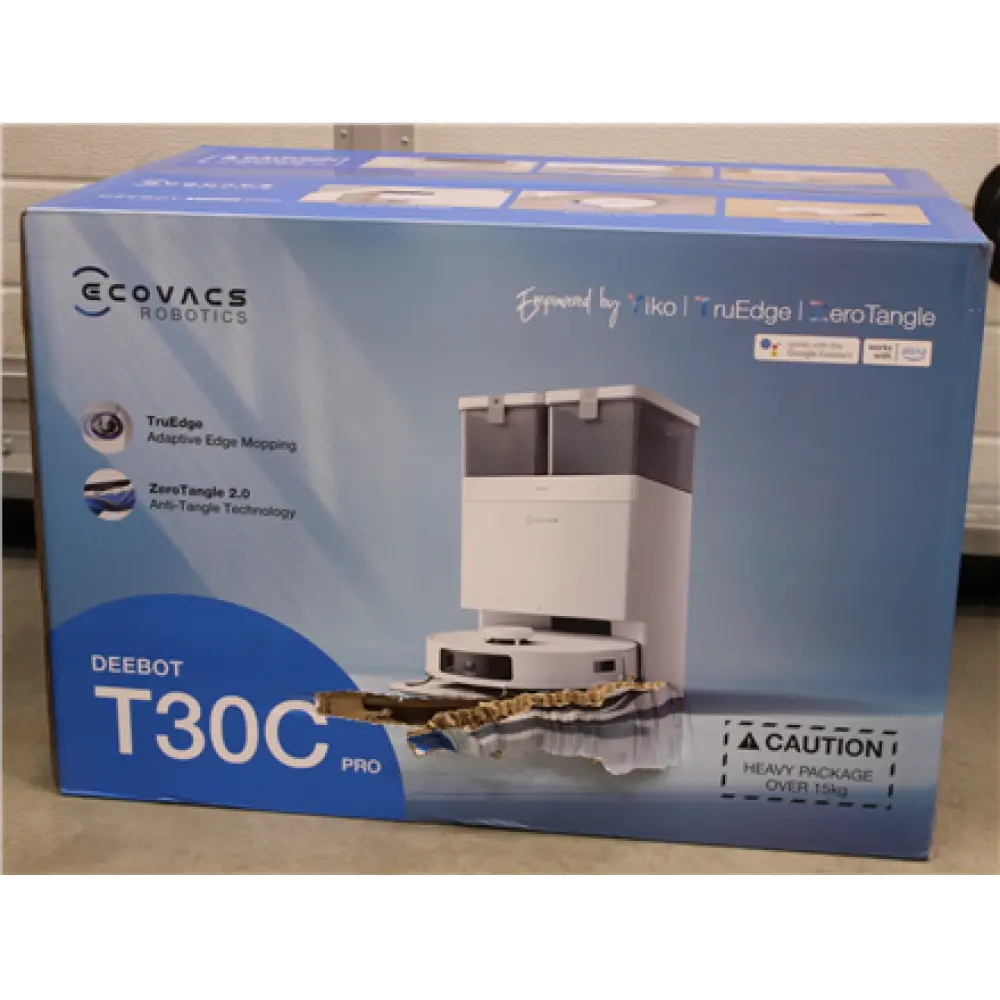
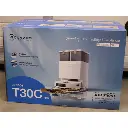
Ecovacs T30C Robot Vacuum Cleaner
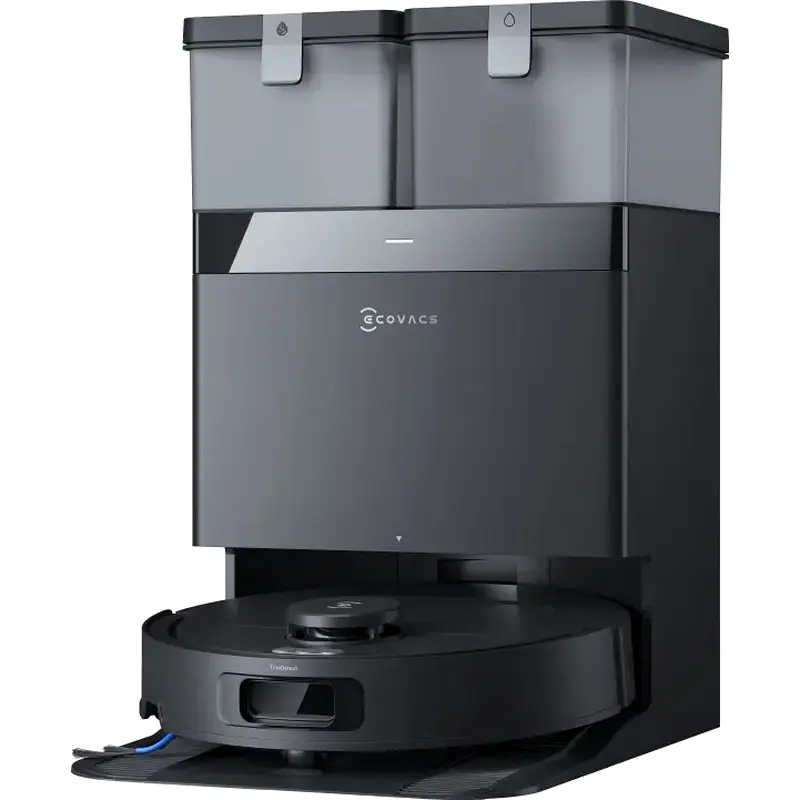
The Ecovacs T30C features a convenient cleaning station for frequent manual cleaning.
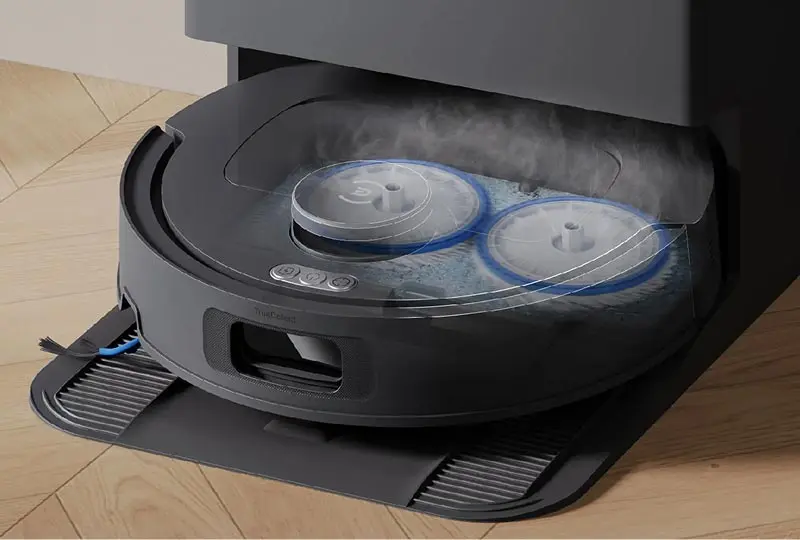
It automatically activates the dustbin and rinses the Android mop head with clean water.
Its air-cleaning technology also prevents the formation of bacteria and unpleasant odors quickly after use.
This smart system ensures a clean and healthy environment independently and with minimal effort on your part.
Technical specification:
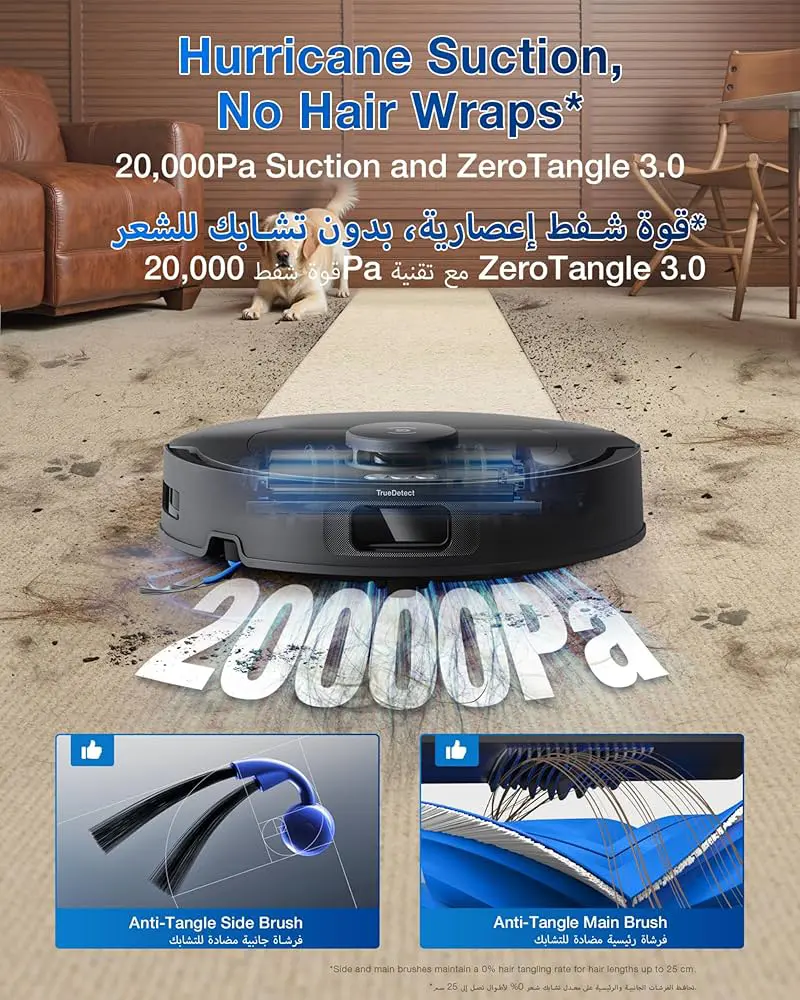
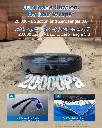
Suction power: 20,000 Pa to ensure deep cleaning of carpets and floors.
Battery and runtime: 5200 mAh battery provides 180-200 minutes of continuous use.
Integrated smart station (OMNI): 3-liter dust bag with automatic emptying, mop head with hot water (75°C) and hot air drying (45°C).
TruEdge 2.0 mopping system: Flexible mop head that extends to clean corners and edges precisely, featuring an automatic 9 mm lift when moving over carpets to prevent water from getting in.
ZeroTangle 3.0 technology: Main and side brushes designed to prevent hair and lint from tangling, reducing the need for manual cleaning.
Navigation and artificial intelligence: It uses lasers (TrueMapping 2.0) to create fast and accurate maps of the house, and smart sensors (TrueDetect 3D 3.0) to avoid small obstacles.
How to use:
1. Initial Setup and Preparation:
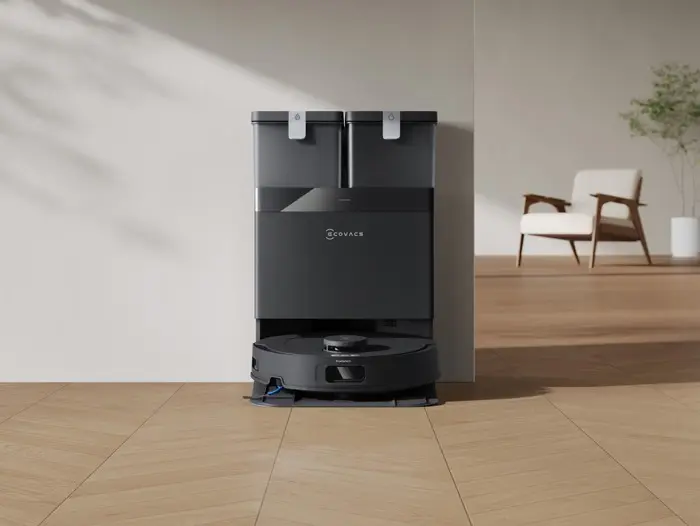
Station Location: Place the OMNI vacuum station on a level, open surface with ample space in front to allow the robot to easily enter and exit. Ensure a strong Wi-Fi signal in this location.
Station Preparation: Fill the clean water tank with water (preferably using the Ecovacs cleaning solution, if available). Ensure the station is plugged in and the dust bag is inserted.
2. Detailed Setup with the Ecovacs Home App (Step-by-Step):
Download the Ecovacs Home app on your smartphone and create a new account.
Lift the top cover of the robot and slide the small power switch to the ON position to turn the vacuum on.
From the app, tap "Add Device" and scan the QR code located under the robot's cover.
The app will ask you to select your home Wi-Fi network and enter the password (very important note: the Wi-Fi network must be 2.4GHz, not 5GHz, for the vacuum to connect).
Press the small Wi-Fi button next to the QR code on the vacuum for one second until you hear an audible alert, then complete the simple pairing steps that will appear on your phone screen.
3. Mapping Your Home (The Most Important Step for Successful Cleaning):
Before using it for the first time, tidy the floor and remove any loose wires, small items, and clothes.
From the app, select the "Quick Mapping" option. The vacuum will then navigate your home, creating a precise laser map without actually cleaning.
Once the map is complete, you can edit it from the app: merge rooms, divide them, name them, or set "No-Go Zones" to prevent the vacuum from entering specific areas (such as where TV cables run).
4. Daily Operating Options:
App Control: You can choose the appropriate mode (vacuum only, mop only, or both vacuum and mop). You can also adjust the suction power and water flow, or choose to clean a single room instead of the entire house.
Scheduling: Use the app to set automatic cleaning times (e.g., cleaning the living room daily at 9:00 AM).
Foot Touch: If you don't want to unlock your phone, simply push the robot's front bumper gently with your foot, and it will automatically start a complete cleaning cycle.
5. Self-Unloading and Maintenance (How Does the Station Work?):
Automatic Dust Removal: Once the vacuum returns to the station, the station will automatically vacuum all the dirt from the robot and empty it into the large dust bag located within the station.
Washing and Drying the Mop: The station draws water from the "clean water" tank and washes the robot mop with hot water to dissolve dirt and stains. It then dries it with "hot air" to prevent mold growth or unpleasant odors.
Your only tasks:
Empty and wash the dirty water tank at the station immediately after each scan to prevent the buildup of unpleasant odors.
Replace the dust bag at the station with a new one only when the app notifies you that the current bag is full (do not empty it manually).
Wipe the sensors and laser cameras with a soft, dry cloth once a month.
It automatically activates the dustbin and rinses the Android mop head with clean water.
Its air-cleaning technology also prevents the formation of bacteria and unpleasant odors quickly after use.
This smart system ensures a clean and healthy environment independently and with minimal effort on your part.
Technical specification:
Suction power: 20,000 Pa to ensure deep cleaning of carpets and floors.
Battery and runtime: 5200 mAh battery provides 180-200 minutes of continuous use.
Integrated smart station (OMNI): 3-liter dust bag with automatic emptying, mop head with hot water (75°C) and hot air drying (45°C).
TruEdge 2.0 mopping system: Flexible mop head that extends to clean corners and edges precisely, featuring an automatic 9 mm lift when moving over carpets to prevent water from getting in.
ZeroTangle 3.0 technology: Main and side brushes designed to prevent hair and lint from tangling, reducing the need for manual cleaning.
Navigation and artificial intelligence: It uses lasers (TrueMapping 2.0) to create fast and accurate maps of the house, and smart sensors (TrueDetect 3D 3.0) to avoid small obstacles.
How to use:
1. Initial Setup and Preparation:
Station Location: Place the OMNI vacuum station on a level, open surface with ample space in front to allow the robot to easily enter and exit. Ensure a strong Wi-Fi signal in this location.
Station Preparation: Fill the clean water tank with water (preferably using the Ecovacs cleaning solution, if available). Ensure the station is plugged in and the dust bag is inserted.
2. Detailed Setup with the Ecovacs Home App (Step-by-Step):
Download the Ecovacs Home app on your smartphone and create a new account.
Lift the top cover of the robot and slide the small power switch to the ON position to turn the vacuum on.
From the app, tap "Add Device" and scan the QR code located under the robot's cover.
The app will ask you to select your home Wi-Fi network and enter the password (very important note: the Wi-Fi network must be 2.4GHz, not 5GHz, for the vacuum to connect).
Press the small Wi-Fi button next to the QR code on the vacuum for one second until you hear an audible alert, then complete the simple pairing steps that will appear on your phone screen.
3. Mapping Your Home (The Most Important Step for Successful Cleaning):
Before using it for the first time, tidy the floor and remove any loose wires, small items, and clothes.
From the app, select the "Quick Mapping" option. The vacuum will then navigate your home, creating a precise laser map without actually cleaning.
Once the map is complete, you can edit it from the app: merge rooms, divide them, name them, or set "No-Go Zones" to prevent the vacuum from entering specific areas (such as where TV cables run).
4. Daily Operating Options:
App Control: You can choose the appropriate mode (vacuum only, mop only, or both vacuum and mop). You can also adjust the suction power and water flow, or choose to clean a single room instead of the entire house.
Scheduling: Use the app to set automatic cleaning times (e.g., cleaning the living room daily at 9:00 AM).
Foot Touch: If you don't want to unlock your phone, simply push the robot's front bumper gently with your foot, and it will automatically start a complete cleaning cycle.
5. Self-Unloading and Maintenance (How Does the Station Work?):
Automatic Dust Removal: Once the vacuum returns to the station, the station will automatically vacuum all the dirt from the robot and empty it into the large dust bag located within the station.
Washing and Drying the Mop: The station draws water from the "clean water" tank and washes the robot mop with hot water to dissolve dirt and stains. It then dries it with "hot air" to prevent mold growth or unpleasant odors.
Your only tasks:
Empty and wash the dirty water tank at the station immediately after each scan to prevent the buildup of unpleasant odors.
Replace the dust bag at the station with a new one only when the app notifies you that the current bag is full (do not empty it manually).
Wipe the sensors and laser cameras with a soft, dry cloth once a month.
| Brand: Ecovacs |
| BENEFIT: Products that guarantee saving you time and your daily comfort |
Your Dynamic Snippet will be displayed here...
This message is displayed because youy did not provide both a filter and a template to use.